
How to Install a Skill
What a skill is
A skill is a folder of instructions that teaches your AI tool how to do one job. It can also include extra files, like scripts. To install one from GitHub, you paste the link into Claude Code, Codex, Claude Desktop or the ChatGPT desktop app and ask it to do the install for you.
The short version
- Open Claude Code, Codex, Claude Desktop (chat and Cowork), or the ChatGPT desktop app.
- Paste the GitHub link to the skill and write: "Install this skill for me:" followed by the link.
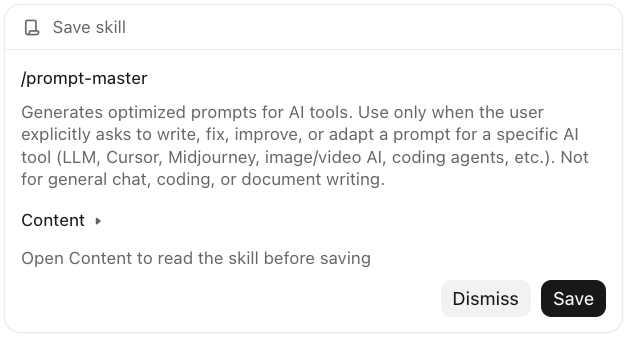
- If it asks permission to download or save files, read what it wants to do and say yes if it looks right. In Claude Desktop, it shows you the skill on a card instead. Click Save.
- In Claude Code, if the skill doesn't show up, start a new session. In Codex, restart it.
Claude Code
Update Claude Code to the latest version first. Then open it and write:
Install this skill for me: [paste the GitHub link]
Claude downloads the skill and puts it in your skills folder. If it doesn't appear right away, start a new Claude Code session.
Anthropic's instructions: Extend Claude with skills
Codex
Update Codex to the latest version first. Then open it and write:
Install this skill for me: [paste the GitHub link]
Codex uses its built-in Skill Installer to download the skill. If the skill doesn't appear, restart Codex.
OpenAI's instructions: Build skills
Claude Desktop (chat and Cowork)
Update Claude Desktop to the latest version first. Anthropic merged chat and Cowork into one, so you don't pick between them. Open a new conversation and write:
Install this skill for me: [paste the GitHub link]
Claude reads the skill and shows it to you on a card with Dismiss and Save buttons. The skill isn't installed until you click Save. After you save it, it appears under Customize > Skills. If it isn't there, make sure you clicked Save.

Anthropic's instructions: Use skills in Claude
ChatGPT desktop app
Update the ChatGPT desktop app to the latest version first. Installing a skill from GitHub works in the desktop app, not in ChatGPT on the web. Switch the app to ChatGPT mode, start a new chat, and write:
Install this skill for me: [paste the GitHub link]
ChatGPT uses its skill installer to download the skill, then tells you when it's installed. It tells you the skill is ready to use from your next message.

OpenAI's instructions: Skills & Plugins
Be careful what you install
Don't install a skill just because it's on GitHub. Anyone can put one up, and a skill is instructions your AI tool can follow. Someone can write a skill that tells your AI tool to ignore you and follow them instead, or to read your files and send them somewhere. So check a skill for security problems before you install it.
We recommend NVIDIA's SkillSpector, a scanner built to check skills. Here is how to use it.
Check a skill with SkillSpector
-
Install SkillSpector. In Terminal, paste:
uv tool install git+https://github.com/NVIDIA/skillspector.git
If Terminal says it can't find uv, install uv first (docs.astral.sh/uv). SkillSpector's page also lists pip and Docker as ways to install it.
-
Scan the skill before you install it. Paste the skill's GitHub link after "scan":
skillspector scan [paste the GitHub link] --no-llm
The "--no-llm" part keeps the check to SkillSpector's built-in rules, so it needs no account or key.
- Read the Risk Assessment box at the top of the report. It gives a score out of 100, a severity, and a recommendation, like "SAFE" or "DO NOT INSTALL". Further down, the Issues list says what it found and on which line.
- If it says "DO NOT INSTALL", don't install the skill. If it lists issues, look at the lines it points to before you decide.
A clean report doesn't mean the skill is safe. The "--no-llm" scan skips SkillSpector's AI-based analysis, so read what your AI tool says it is about to do before you say yes.
The official docs
These are the tools' own instructions, if you want more than the short version.
- Anthropic: Extend Claude with skills (Claude Code)
- Anthropic: Use skills in Claude (Claude Desktop)
- OpenAI: Build skills (Codex)
- OpenAI: Skills & Plugins (ChatGPT)